Cloudflare Style is in Alpha and is a work-in-progress. Expect changes. Contact DESSYS with any questions.
Updating Icons
Clone the product-design repository
This repository contains all the source files for what will eventually end up in component-icon. New icons are added in the /icons/icons-exports directory.
git clone ssh://bitbucket.cfdata.org:7999/design/product-design.git
Exporting from Figma
- Ensure that the SVG Export plugin is installed.
- Select the artboards for the icons you're exporting and using the menu, go to Plugins > SVG Export.
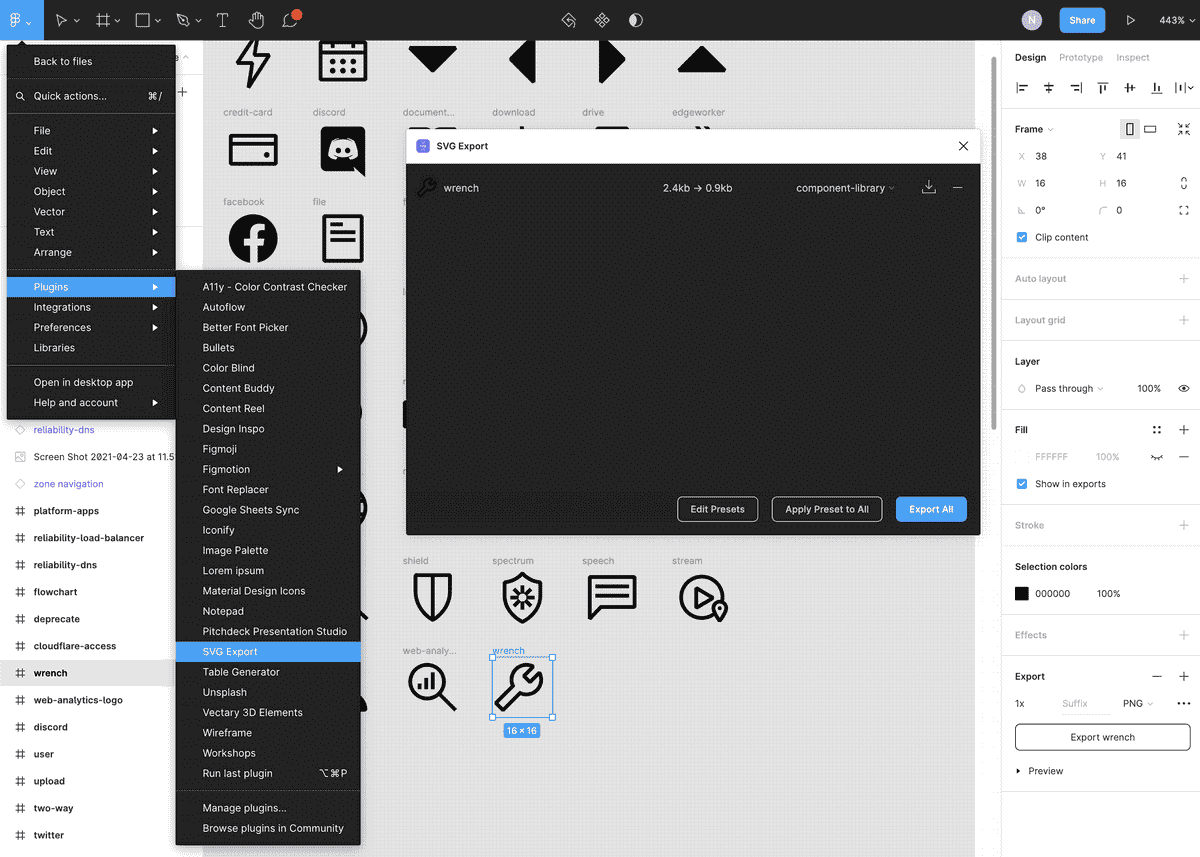
From the SVG Export window, use the
component-iconpreset and select Export All.- The icons you've selected for exporting will show up in the SVG Export window.
- Use the component-icon preset to make sure you're exporting using our custom settings.
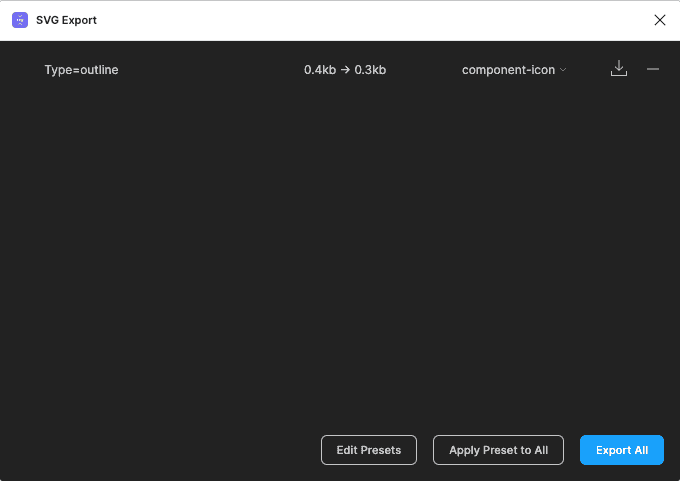
Note — The following options from the preset should be disabled:
- Layer names as classes
- Use currentColor as fill
- Remove opacity
- Remove stroke
- Remove fill-rule
- Move defs to top
- Remove XMLNS
- Remove viewBox
- Reuse duplicate paths
The icons are now on your computer.
- Navigate to the folder your icons were downloaded to. You'll be adding it to the
product-designrepository.
- Navigate to the folder your icons were downloaded to. You'll be adding it to the

Preparing the repository
- Add to
/icons/icons-exportsdirectory - Updating .zip file All exported icons are also in the product-icons-svgs.zip file. Take all the icons in your icons-exports folder and compress them in a .zip file. Name that file product-icons-svgs.zip to replace the existing .zip file under icons/icons-exports/zips.